Tuesday, March 28, 2017

Useful shortcuts to hidden Windows features

Many of Windows system functions are hidden. So you cannot access them via Start menu or icon on the desktop. You have to learn magic keyboard shortcuts (Ctrl+Shift+Esc, Ctrl+Alt+Del and so on.) and file names of system utilities.

The Missing Buttons software easily solves this problem. With this great software many of hidden and missing features of Microsoft Windows are always under you hands. You can download and test the software utility absolutely free.


Sunday, January 2, 2011

Have a notebook with TouchPad?

Almost all modern notebooks and laptops have a built-in touchpad sensor panel to control a cursor. However many people still prefer to use a mouse with their notebooks. A lot of small computer mouses, wired and wireless, designed for using with laptops, are available on the market currently. But using a mouse is not always comfortable, especially when you are working in an armchair or in the bed. Touchpad is a much better choice in such situations.

Touchpad is a great and powerful device. Using touchpad, you can move the cursor with a single finger, scroll text or page with two fingers, zoom pictures up and out with fingers of two hands. So touchpad is better than mouse, you just need to practice a little to change your mind.

But there is one thing that annoys people even if they are the touchpad professionals. This is the problem of accidental touches by palm or hand while typing a text. When the user touches the sensor, cursor jumps to another part of a document, and words appear in a wrong place. If touchpad buttons are very sensitive an accidental click can execute some command or bring up a popup menu.

Some people hate touch panels because of this problem and simply disable the touchpad. Other ones turn the touchpad off before typing, and turn it back on when finished.

There is a small software utility that solves the problem of accidental taps and clicks - Touchpad Blocker. This program disables mouse evens for a small period of time (less than a second) after each keyboard's button press. Simply, but works!

Touchpad Blocker is a must have tool for each notebook with touchpad.

Saturday, October 17, 2009

Why type text when you can paste quick?

What do you do with your computer? If your activities are not limited by games and movies, I bet you type something. Emails, letters, chats or other messages, discussion boards, forums... The constant set of addresses, logins, contact information, file names, urls and many-many other - these things are typed everyday by users. Maybe text work is your professional task? Writers, journalists, editors, programmers, web-developers, tech support members and many others - they are people who spend time typing text.

Why spend time and efforts for mechanical actions when you have more important tasks? Maybe you want to spend time for interesting creative work or start doing the things you never had time for? Or you just want to have some rest or spend more time with your family. Change your life with FlashPaste software. This utility will relieve you from routine typing. Just copy frequent phrase once and paste it as many times as you need.

In fact, FlashPaste is your personal text repository. It doesn't matter what you will store there: your login and password, your signature, favorite poem, or a long instruction for your users. It is important that this information is always at hand. When needed, you just select the necessary text in the line tree and in a couple of seconds it is pasted to the necessary window. What can be easier? Only the feature to quickly insert the latest line – just press a hotkey and the line is inserted into the document again.

With FlashPaste you can paste text into almost any input field: Microsoft Word or your favorite mail client, a specific program, which you use at work, or a form on web-site. Everything you need just press a hotkey and click on phrase you want to insert.

However, FlashPaste is not the storage of text for inserting, it is also called a powerful utility for inserting and copying text. Software saves for you the recent 10 texts which you copied to the clipboard. This function is called the clipboard history. Besides, macros are also supported. Do you want to be able to quickly insert the current date? Just one click!

Download free evaluation copy of FlashPaste software and save lots of time while working on PC.

Friday, August 21, 2009

How can time tracking software help you to keep higher productivity

Either you need some time tracking software for yourself or for employee monitoring - WorkTime can suit all your needs in time tracking.

If you are looking for a productivity monitoring software, with WorkTime you can easily solve many important tasks, like, for example:
  • Monitoring computer - you can setup a constant invisible automatic computer monitoring that will help you in tracking employee productivity level.
  • Monitoring Internet usage - as for today this is one of the biggest issues, especially in large companies, where a lot of time is simply wasted on Internet related activities. With this program you can monitor Internet usage automatically. Software reports how much time is actually spent working or browsing the Internet. Also, for example, you can find out, what are the most popular Internet resources employees use or who uses Internet the most.
  • Employee time tracking - you can automate employee time tracking process. Software automatically records any computer activities by the employees: applications run, documents used, websites visited, and so on.
  • Employee time clock software - you will always know when your employees start and finish working.

The time tracking software market proposes you lots of ready to use applications, but only WorkTime covers any of your time tracking needs at once. Many of customers and independent mass media consider WorkTime as a most powerful and intuitive monitoring software on the market.

Saturday, August 8, 2009

Burn Discs from Audio CD to High-Definition Video

Can your brand new PC burn DVD movies? Most Windows XP machines can't do that, and only support CD burning at best. Windows Vista adds support for DVD media, but the industry invented two new high-definition formats - Blu-Ray and HD-DVD, which Vista cannot cope with. So did you spend your money for a brand new high-def disk burner for nothing? Are you a hostage of big greedy media companies that want to charge you hundreds of dollars for the features you thought you already paid for?

That was the unfortunate truth until very recently. But not anymore! Burn just about any disk format in the world with the brand new DVD Blaster software! DVD Blaster supports all current optical disk formats from legacy Audio CD to brand-new Blu-Ray and HD-DVD disks. Of course, you can burn a data CD, a single or double-layer DVD video or data disk just as easily!

Did you download a high-def burning utility only to find that it does not support your minty Blu-Ray burner? Got a message saying "Your disk burner is not supported, please update the driver"? DVD Blaster works with all CD, DVD and HD burning hardware with no issues.

Ever had a bunch of MP3s handy, but couldn't figure how to make a proper CD to play back in your car? Make an Audio CD from WAV, MP3, WMA, OGG, ASF or WMV files from within a single application. Make a Video CD, Super VCD or even a DVD video from a movie in almost any video format from the very same application. Burning data CDs and DVDs is equally easy no matter what you store. Erase or rewrite CD-RW disks, create double-layer DVDs and perform just about any burning task with DVD Blaster.

Burning a disk is now extremely simple thanks to the DVD Blaster new wizard-style interface. Feel a little more advanced than that? Try the all-new Power GUI that allows you to fine-tune your disks and adjust burning properties. Want to fit more on a CD or DVD than the standard allows? It's often not only possible, but even advertised on the disk labels - except that no standard CD/DVD burning application supports the unusual sizes. Increase your storage capacity safely and easily with DVD Blaster's Power GUI by adjusting the Overburn!

Did you ever wonder what's inside that ISO file? ISO files are disk images that contain information about the entire CD or DVD disk. Without DVD Blaster your only choice to see what's there and use it would be actually burning the image onto a blank media. Not anymore! DVD Blaster conveniently mounts the ISO image and creates a separate drive letter, allowing you to work with the image as if it was a real disk inserted into your CD/DVD drive - yet without actually burning anything! No need to waste blank media, and no more waiting till the burning finishes - just mount an image with DVD Blaster, and you're ready to roll.

DVD Blaster sells for merely $19.95, and offers a free download for you to try. Download DVD Blaster for free and check out its cool features and ease of use! Get your copy at www.dvd-blaster.com

Sunday, July 19, 2009

Recover Deleted Files and Folders in a Snap!

Files and folders, once deleted in Windows, still exist somewhere on the disk. Information is not being wiped out by system; instead, disk space occupied by deleted files and folders is declared as available. A slim period of time exists when it is possible to recover deleted files and folders by pretending they were never deleted. But don't try it without proper tools as you can only make it worse!

A variety of undelete, unerase, and data recovery tools exist on the market, advertising complete recovery of deleted files. Not all of them are created equal. Some of the tools are trying to recover deleted documents by simply marking that space on the hard disk as taken by such-and-such files; this is wrong! Attempting to fool Windows by pretending the delete never occurred can cause all sorts of trouble from corrupted documents to broken file systems, leading to system instability and inaccessible disks. Unfortunately, the majority of affordable unerasing tools on the market can only work this way.

A different approach is employed by modern data recovery tools such as Data Cure. While still quite inexpensive and easily affordable to home users and small offices, this file recovery program never attempts to trick Windows into believing the file was never deleted. Instead, the data recovery tool thoroughly scans the entire hard disk in order to locate the exact size and location of every recoverable file on the disk, and restores files and folders by saving them onto a different media. Different media is an important keyword; it is essential not to write anything onto the disk containing missing information. Otherwise, one will take the risk of overwriting the contents of precisely the files being recovered by using the currently available disk space that was previously occupied by deleted files!

Data Cure can store files and folders being recovered onto a different hard drive, burn them to CDs, DVDs, or BluRay discs, store them onto a network disk, or even upload over FTP.

Is Data Cure any more complicated than simple undelete tools? Not at all! In fact, it's even simpler to use than any other data recovery solution on the market. Designed with an average computer user in mind, software features an easy, step-by-step user interface that only asks two things: where the deleted files and folders were, and where to put their recovered copies. It's just that simple! No need to learn about file systems, partition tables or sectors; a computer program is more likely to know all about them than you are!

Not sure whether a particular file can or should be recovered? Data Cure has pre-recovery preview built into it. Displaying a variety of file formats such as documents, pictures, archives, and multimedia files, this tool will help you decide whether a file can be recovered and whether you really want that copy of a document or a newer one.

Download your evaluation copy of Data Cure software for absolutely free: Download and install Data Cure

Saturday, March 21, 2009

The Benefits of Duplicate Picture Finder Software

If you have a digital camera and you take very many digital pictures at all, you can benefit from duplicate picture finder software. You might think that it's software best suited for professionals who take thousands and thousands of digital photos. And it certainly is great for them, making sorting photos much less time-consuming. But duplicate picture finder software is great for the amateur digital photographer, and even the most casual users.

If you've ever worked with digital photos at all, it's more than likely that you have duplicate photos on your computer. You don't even have to own a digital camera for this to happen. If you've ever scanned anything and saved it in an image format, whether it's a document or an actual photograph, and then you made any changes to that file, you could still have the original file on your computer, along with the altered image on your machine. Duplicate picture finder software is ideal for eliminating these copies that you might not even realize you're still hanging on to.

Losing information while working on a computer is a problem that some of us have experienced first-hand. If you've ever been working on any type of project when the power has gone out unexpectedly, you know this pain. We quickly learned to save, save, save to avoid this problem. As a result, we can have several saved copies of essentially the same file. When it comes to photos, at least, duplicate photo finder software can
find these copies and let you choose between them.

When working on a photograph that needs enhancements, like red-eye reduction or cropping,for instance, many of us commonly copy the original photograph so that the saved original remains intact, just in case we make a mistake with the enhancements.
But unfortunately, that "save" mentality lets us leave the original photo, the one we felt needed changing, on our hard drive, too.

If you've got a gargantuan hard drive, you might not notice the missing real estate thanks to duplicates. But why use space unnecessarily? Duplicate picture finder software can clear up disk space used by copies of photos, and leave more space for the programs and files you want. If your hard drive is less than mammoth, duplicate picture finder software can free up space and make a huge difference in the operation and speed of your system.

Wednesday, November 19, 2008

Picking an Ideal Password Manager

Filling out logins and passwords on many Web pages is a routine for anyone using the Internet. Most computer users have multiple accounts on various Web sites that require authorization. It is simply not possible for an average user to remember the many unique passwords used on different accounts, so a single password or its variations are used to protect accounts on various web resources.

Needless to say, using a single password or its variations on different resources is a bad idea. If just one of your passwords gets compromised, none of your accounts remain safe. But how would you memorize multiple unique, strong passwords? It's next to impossible memorizing all of them!

Password management features built into common Web browsers certainly help. However, browsers' password managers are neither safe nor secure. It is easy to break into these passwords if a malicious person has access to your computer, and it is easy to lose all recorded passwords if you clear form data or simply move to another computer.

If you want a secure password storage that you can keep with you wherever you go, and that you can use on any PC, you need a stand-alone password manager. There are many of those available, but which one of them would you trust your passwords?

In order to make the right decision, you have to research your priorities. A password manager must be able to store your passwords securely. The passwords must not be compromised even if spyware or malware gets physical access to your computer. The passwords must be portable, meaning that you have to be able to move them from one computer to another, or, better yet, carry them with you while travelling. Finally, it is important that you can access the passwords conveniently. Ideally, the password manager would fill the forms that require logging in automatically on your behalf.

Out of a great many password managers, only a few lived up to expectations. Automatic Password is one of them. Storing your passwords securely encrypted, Automatic Password protects them with a Master Password, not allowing anyone but you to access them. Your passwords are ready to travel with you on a flash memory card. You can literally save the program onto a flash card along with the password files, take it with you and plug it into any PC to get immediate access to password-protected accounts. Removing the memory card leaves no trace of the passwords you used on the guest PC.

Accessibility is a really strong point of Automatic Password. You literally don't have to touch a button to fill the login forms! Software detects password-protected resources that you visit, and fills in account information automatically. For even more convenient access, there is a small button on top of every window right next to the Close button to allow quick access to advanced features such as selecting a particular account credentials to be used for a login.

You may download a 30 days evaluation version of Automatic Password from official web site: www.automatic-password.com

Wednesday, September 17, 2008

Web hosting coupon codes

One of the toughest decisions you will make for your web site is where it will be hosted. Because of the difficulties involved with transferring to a new web host should your old web host fail you, most people want to pick the right host in the beginning so that they will not have to look for another web host 3 months later.

If you will be hosting a commercial site or a site that requires optimal service, then you should not be as concerned with the price as maybe someone with a hobby or personal site would be. As the old saying goes: "You get what you pay for." That is not to say that lower priced hosting accounts are not as good as higher priced accounts, but you may receive a significantly less amount of features than you would with a hosting account that is a little more per month. You must also watch out for web hosting companies that pop up over night. Sometimes, it is better to go with a company that has been around longer and that has a proven track record of success. You must thoroughly research web hosting companies and their accounts before deciding which one to go with. You do not want to have to go through the hassle of transferring to another web host later on down the road, nor do you want bad service. To find web hosting coupon codes visit http://www.couponcodesbox.com

Depending on your needs and resources, it may be more beneficial to look for a single company that will provide you with total Internet Solutions, such as web design, web development, web site updates, hosting, and even internet access for your employees if it is needed. When you deal with 1 company versus 3 or 4 different companies for your Internet solutions, it will more than likely be a smoother ride if something goes wrong, and you are less likely to have the misunderstandings or confusions that you may have when dealing with different companies for your different tasks.
To find domain registrar coupon codes visit http://www.couponcodesbox.com

Wednesday, September 3, 2008

Finding the perfect web host

One of the most crucial decisions that most online businesses have to make is choosing the best web hosting service. With a popular or well known and reliable Internet Service Provider (ISP) you won't face many problems, however with a poor web hosting service provider it can be a nightmare. A very good web host is hostgator.com read a review here HostGator Review for hostgator coupons visit HostGator Coupons

Choosing the right kind of web hosting service can be a very daunting task at times as there are some very important features that you need to make sure of. Here you can find below what exactly to look for when choosing the best web hosting service.

Amount of web space: A web hosting service provider would usually assign you a certain amount of space on their server. You need to ensure that does it have the right amount of space for your website and your business requirements. You might want to expand your online business tomorrow and would require much more space. So it's imperative for you that the web hosting company should be able to provide you with ample of space especially if your website is rich in graphics or has video clips.

FTP access: FTP access is very crucial since it provides the ability to upload new pages. Some web hosting service providers allow you to just design your web pages with their own personal web builder. This may be useful for beginners however you need to ensure if they provide you the facility to expand later when you enhance your online business capabilities.

Degree of reliability, security and speed of access: Speed, security and reliability are extremely important for the success of any online business. While choosing a reliable web hosting service you need to ensure that this is taken care of. A site that is not available, not updated on time or is down, will lose many online visitors. If an online visitor finds your site listed on a search engine, and he tries to access it but finds it down, he is sure to move on to the next link and you lose an important customer or visitor. Even slow working websites are very frustrating. So how do you know if a hosting company is reliable or not? By word of mouth or feedback from others! If that's not possible then you can yourself try accessing your site during peak hours and non-peak hours too. Your site has to be secure of intruders at the same time, especially if it's an ecommerce website. To read web hosting reviews visit Web Hosting Reviews

Wednesday, July 9, 2008

Download YouTube video for free

Ever wanted to download that YouTube video you loved so much? Or did you need a song but couldn't find it on LimeWire? Well, now you have LookForav, your one stop site to download all YouTube videos and music albums!

Thursday, February 14, 2008

Fresh Password Recovery Articles For You

Security and privacy became #1 problem in today’s world. So, while I’m still busy I advise you to take a look at the following password related articles I’ve found:

Password recovery tool – short article is comparing the tools and applications used to recover passwords for modern office programs.

Outlook Express password – detailed guide on how to create a strong password for your Outlook Express client and what to do if you suddenly cannot access to your emails.

Outlook Express password recovery – detailed review on handy password recovery tool for Outlook Express.

Good luck and Happy St. Valentines day!

Wednesday, October 24, 2007

Wallpaper Changer – best tool to vary your desktop

Hi every one!

I’m sorry about rare updates of this blog but a have a lack of time due to my primary work. Today I’d like to make a short post about cool desktop utility I’ve recently discovered. This tool is called Wallpaper Changer and it’s the best one I’ve seen on the market. Wallpaper Changer enables user not only to change wallpapers periodically on his desktop but also has a numerous unique features inside. The most useful of them are: adjustable calendar right on your desktop, cool filters effects you can apply to any wallpaper you use and an ability to download wallpapers directly from the Web.

Take a look on it and I’m sure you like it. Oh, BTW this program comes with a set of free wallpapers for your personal use.

Good luck!

Saturday, September 8, 2007

Squidoo is banned on Netscape

Recently I was trying to add a story to Netscape and got the following:
The domain or URL is banned for the following reason: Member complaints for spam farming

Here's the screenshot


Tuesday, April 3, 2007

How To Arrange 9 Gb MP3 Collection For 21 Min And 46 Sec

A brilliant idea came to my mind - to arrange my mp3 music collection. The collection means 9 Gb of MP3 tracks chaotically scattered over my Music folder and its subfolders. So, I decided to clear up this mess. I googled a bit and came over the program I need – Audio Tags Editor.


The program enables you to edit tags of audio tracks, copy, delete and rename files and folders and (what is most important) to retrieve track information from FreeDB database. Believe your or not but using this feature I discovered several artists on my hard drive I have never thought they exist :)

You are also able to rename bulk of audio files and folders. Setup Quick Rename Mask and hit Rename button. Simple and fast! In addition you can create playlists for the files you rename using specified playlist template.


I think Audio Tags Editor is indeed needful tool for every MP3 geek. I used it with pleasure and as a result, the whole collection was arranged in about 20 minutes. Go ahead and try:

Audio Tags Editor Homepage

Wednesday, March 21, 2007

VideoGet – ideal tool to download and save videos from YouTube

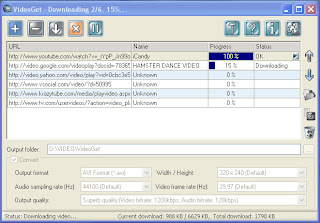
Yesterday I’ve found the software I was looking for since YouTube video sharing service became so popular. I was racking my brain all this time on how to save my favorite videos from YouTube and Google Video and to convert them into some AVI or MPEG files. At last, I’ve found a piece of software that does that all – VideoGet.

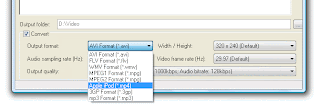
VideoGet enables you to download any video from almost all video sharing services over the web, including YouTube, Google video, Metacafe and other websites I’ve never even heard about. All what you need is to paste the URL of an appropriate video and hit the Download button. AND! Using this program you can convert all downloaded videos into any video format you like (mobile 3GP and iPod MP4 are also supported). OR you may leave FLV as is. God I like this tool!

What Else You Should Know

  • Bulk download is supported

  • Ability to save and load batch lists of videos

  • Various video conversion options

  • Full set of download manager options (Add download, Pause/Resume etc.)

  • Works on Windows Vista

  • Trial mode allows you to download up to 20 videos

Screenshots


Full version of VideoGet costs only 20 bucks. I think it’s a fair price for such brilliant piece of software and I’ve already bought 2 versions for me and my son’s PC.

Here is download and buy links:

Good Luck and Have Fun!

Tuesday, March 20, 2007

3 simple steps to transfer Microsoft Outlook

I've bought new laptop and faced with a problem of moving my corporate mail to it (I'm using MS Outlook). To move all the Outlook stuff I've used Outlook backup tool I've told you before. Sinse the transfer process took less time that I expected I desided to use saved time to spread the word about this program again. As a result here is an article I've scratched.

Maybe everyone has faced with a problem of transferring data to a newly-bought computer. It's not a problem to copy files and documents from one PC to another. But moving a specific program together with all its data and settings becomes a rather complicated task. Especially when the program stores its data in uncommon way, like Microsoft Outlook does.

These days Microsoft Outlook became a corporate standard used for business correspondence among email clients. Almost every company uses it for its email purposes but not all of them can afford themselves to use an exchange server to store their messages. So when your Outlook data is on the hard drive of your computer you will have to copy certain data files and numerous registry entries to move all your Outlook stuff to new computer. And this transfer process becomes a real headache for people without appropriate technical knowledge and with a lack of time.

That's when special backup and transfer tool comes into play. Such tool knows exactly where your data is stored, how to save it correctly and, what's the most important, how to restore your stuff without any data loss. The utility I've found - ABF Outlook Backup does this all quickly and easily. The program saves backup copies of all important Outlook data including email messages, address book contacts, settings, accounts, message rules, junk email lists, signatures, and even your Internet Explorer favorites. And what's also important, using ABF Outlook Backup you can easily transfer your Outlook stuff between computers in a 3 simple steps.

First you need to download and install ABF Outlook Backup to your old computer (a computer which you are going to transfer information from). When installation process is complete run the program and prepare to backup. Choose Outlook items you want to move to another PC (data files, options etc.) and select the place on your hard drive where the program should save the backup file to. Please note that MS Outlook have to be closed during the backing up process. Also do not try to back up directly to CD/DVD or removable device.

The next step is to copy the backup file you've just created to your new computer. If both computers are connected via LAN you can move the file using your network. Another way is to transfer backup file using recordable CD/DVD or some flash drive. You can even try to move backup archive by sending it on your email (that depends on backup file size) or using FTP or some public file sharing service like www.sharebigfile.com. But I do not recommend you to commit your personal data to public service.

Finally, when you get backup archive to the new computer, install and run ABF Outlook Backup on it. Go to Restore tab and browse the file you've just moved. Select Outlook items and restore you data. Ensure that MS Outlook was already installed and run once on the new computer.

When restore process is over run MS Outlook and enjoy your good old messages, contacts, settings etc. This transfer method can also be used to transfer Outlook between different Windows users or even between different Windows version, for example 98 and XP.

BTW Outlook Backup moved to the new website (http://www.outlookbackup.com). The site helps users to solve backup problems of MS Outlook, like export Outlook or synchronize Outlook.

Tuesday, March 6, 2007

Moving To Vista? And What About Passwords?

So, you’ve just bought a new DVD with unusual box form with Vista installation on it? My congratulations! But hold a second you happy Vista owner, I want to ask yourself something: Do you remember all the passwords you’ve used in XP? Yes I mean passwords for the or Outlook Express, passwords to dozens of websites you’ve stored in Internet Explorer... Yeah man I don’t remember all of them too. But, here’s an utility that will bring all your passwords back – ABF Password Recovery.

What’s Inside?
The program is simple as it has to be. Run it, click on the icon of the program you’d like to recover the password and that’s all.
Some useful features:

  • Recovers passwords for the numerous popular programs like Outlook Express, MS Outlook, Internet Explorer, etc.
  • Unique tools like password picker and hidden passwords
  • Customizable interface with Multilanguage support.
  • Detailed help manual

Don’t Tell Anybody

The last thing I’d like tell you… But please don’t tell anybody. Trial version of ABF Password Recovery reveals only first 3 digits of your password, BUT! If it’s not some random generated password, you will remember it easily. And you will not have to pay for the full version!

ABF Password recovery homepage.


Sunday, February 4, 2007

Remote Desktop Control - save your time by working remotely

Have you ever being asked by your relatives or friends to help with their PC? “Honey, would you please help me to setup this mail client so I can have my own email account?” or “How did you make this stuff working? Can you repeat it on my computer?” I’m plagued with this frequently, and what about you? Now imagine you can help your granny to install her favorite instant messenger sitting right in the front of your own computer and keeping your butt in your favorite chair. Even if you granny lives in California and you’re in Florida. The tool that can do this called Remote Desktop Control.


Why Must Have?

The program allows you not just to see the screen of remote computer on you desktop, but even to work with it as with your own one. Moreover, you can work with a several computers simultaneously, what can be very useful for system administrators (yes, those gurus who know everything about computers). And paranoiac bosses will find Remote Desktop Control useful when they want to spy upon their employees.

What’s inside?
  • Two modules: Admin module and Host module, which may be connected via LAN or Internet
  • Multiple connections support
  • Strong connection security
  • Remote power management (remote shutdown, reboot, logoff, etc.) together with different modes: "view only" and "full control".

Remote Desktop Control homepage

Monday, January 22, 2007

Backup for Microsoft Outlook

Nowadays it’s hard to imagine some company’s PC without Microsoft Office toolkit. And Microsoft Outlook mail client became some kind of industry standard. And still without appropriate backup function...

Why Must Have?
You’re not going to loose all corporate correspondence, right? And perhaps your business contacts are much more expensive then those 30$ which ABF Outlook Backup costs. So, needless to say, this piece of software is really must have tool.

What’s Inside?

  • Comprehensive tool to backup Outlook data - allows you to backup and restore your email messages, address book contacts, settings, accounts, message rules, junk email lists, signatures, and even your Internet favorites.
  • User-friendly interface – select what to backup, where to put the backup file and off you go!
  • Backup scheduler and command line support
  • Multilingual interface and detailed step-by-step backup manual.

ABF Outlook Backup homepage.